Windows 10 21H1 ISOs are now available for Insiders

Today, Microsoft has published ISO images of the next feature update, but there’s a catch – you need to join the Insider program to get started with a clean installation of Windows 10 version 21H1.
Microsoft has already confirmed that version 21H1 comes with a few quality improvements and there are no new features (if you don’t consider the changes for the Windows Hello settings page).
How to download Windows 10 21H1 ISO images
To download Windows 10 21H1 ISO, follow these steps:
- Register or the Windows Insider program from here.
- Head to the download page on Microsoft’s website.
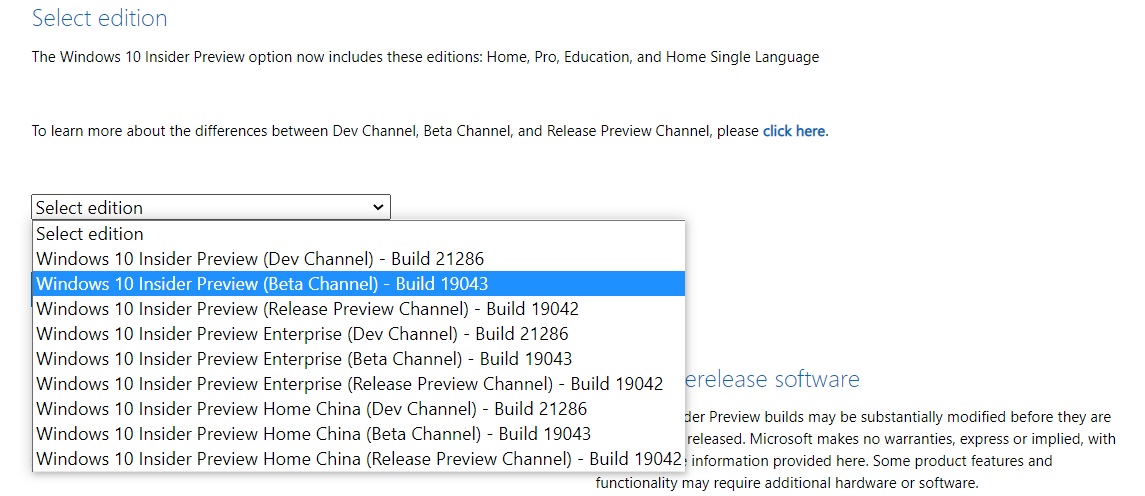
- Click on ‘Select edition’.
- Select “Windows 10 Insider Preview (Beta Channel)” – Build 19043.
- Select the language (make sure that you select the language given in the Settings app > Language).
- Select “64-bit download”.
If you followed the above steps correctly, the download of the ISO file will start in your browser. Remember that the links will expire after 24 hours.
How to use Windows 10 21H1 ISO file
Once you’ve downloaded the media files, follow these steps:
- Open File Explorer and right-click on the .ISO file.
- From the pop-up menu, select the Mount option.
- If you don’t see the mount option, go to Settings > Apps > Default pages, and click on “Set defaults by app”. Locate “Windows Disc Image Burner” and set File Explorer set as default.
- After mounting the ISO, you should find a setup.exe file.
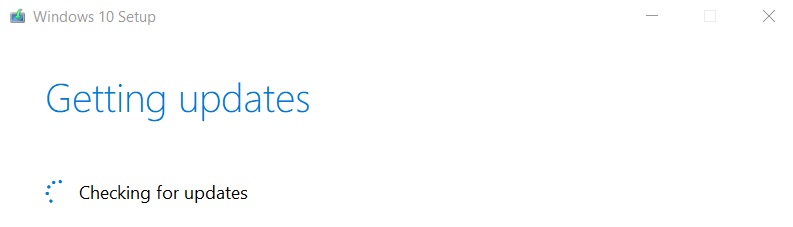
- Double-click that file to install update the current installation of Windows.
- After the installation has finished, you’ll need to reboot your device and build number changes will automatically reflect in the Settings app.
It’s likely that you’ll see an ‘Insider preview’ watermark on your desktop if you install the preview of the update. The watermark will be removed when the update is released to everyone, which is currently scheduled for May/June.
While the spring 2021 update has been finalized, Microsoft still doesn’t recommend that you use it as your OS on your primary computer. The update is technically still a ‘preview’ and builds can be buggy.
If you still want to try out the update, there’s a safe easy way to test it: virtual machines (VMWare or Hyper-V). On Windows 10 Pro or Enterprise, you can use Hyper-V to create a virtual machine by following these steps:
- Open the “Turn Windows features on or off” page and enable Hyper-V.
- Reboot your device and search for Hyper-V Manager.
Once done, create a Virtual Switch for the External network and then configure your virtual machine.

Comments
Post a Comment